![[board:marked][pieces:classic-ebonized][priority:1] Marked iChessOne board with classic ebonized pieces](http://www.ichess.one/cdn/shop/files/ichessone-smart-chessboard-3834565.jpg?v=1779804811&width=1500)

6.4.4 Lichess matchmaking and board position check#
If you see “Your board is not connected”
- Tap Find a board.
- Check the board status and connect it.
- Return to the game setup. Matchmaking remains unavailable until the connection is restored.

If you see “Your board is not ready”
- Compare your physical pieces with the position shown in the app.
- Correct the squares highlighted red on the board.
- Start matchmaking when the required position is complete.

For Standard, Three-check and Antichess, arrange the correct starting position. For Chess960, only the pawn ranks are checked before matchmaking; the remaining starting position is generated when the game is created.
6.4.5 Playing or resuming a Lichess game on the board#
When you open a game, match the physical pieces to the position shown in the app. The app position is the reference for online play.
Choose Board view or Clock view
Use the view selector next to the battery indicator. Switching views does not change the game or the physical position.
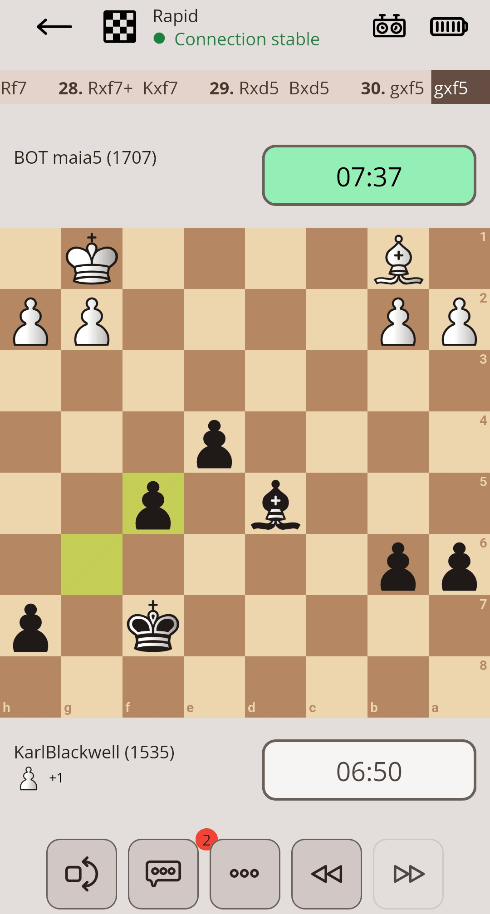

- Board view: a larger position with compact player information and clocks.
- Clock view: larger clocks with a smaller board.
- The header shows game type, Internet status, board connection and battery.
- Player areas show usernames, ratings, clocks and captured-material information. The active clock is green and turns orange when time is low.
Use the game controls
- Move list: tap a move on the brown bar to review that position in the app. It does not command the physical board.
- Rotate board view: change the app visualization’s orientation.
- Chat: type a message or use HI, GL, HF, U2, TY, GG or WP. Communicate respectfully and report abuse through Lichess.
- More options: before play, abort the game. After the first move, available actions may include takeback, resign, draw offer and adding 15 seconds to the opponent’s clock.
- Move navigation: step through game history in the app without changing the physical board.
Make and follow moves
- Move your own piece on the physical board.
- The app sends it to Lichess. The app visualization confirms it after the server accepts it.
- When the opponent moves, follow the board’s indicated starting and destination squares.
- Move their piece to the destination, then continue when the position is recognized.
If confirmation is delayed, check the Internet connection.
Premoves and check indication
Enable Premoves in Game Settings to prepare one move while waiting. The iChessOne setting controls physical-board premoves and takes priority over platform-side preferences. A queued move is sent only if it remains legal.
Enable Highlight King Under Attack if you want the king’s square highlighted in check.
Resume a game
Open the game from Active games, including correspondence games. Restore the physical board to the position shown in the app before making your next move.
Castling and promotion
Follow the app dialog to place the king and rook or the promoted piece on the indicated squares. The dialog closes when the position is correct.

6.4.6 Game end and result screen#
| Board indication | Result |
|---|---|
| Green on the winning side | Win |
| Red on the losing side | Loss |
| Orange on both sides | Draw |
The app also shows the reason the game ended, such as checkmate, timeout, repetition, insufficient material or a variant-specific result.
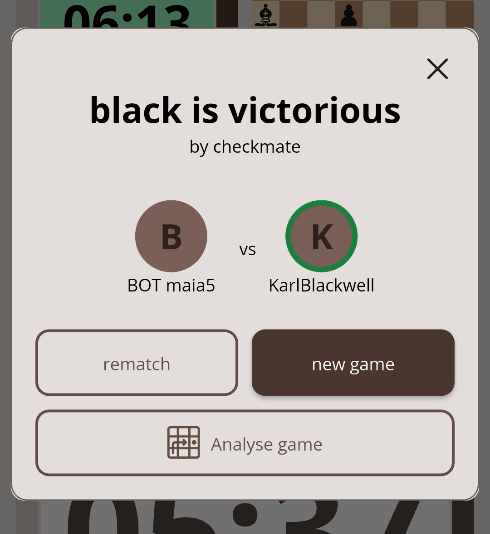
- Rematch: request another game with the same opponent and settings.
- New game: start matchmaking using the current preset.
- Analyse game: open the completed game in the app’s analysis view.
6.4.7 Receiving Lichess challenges#
- Open Settings → Integration → Lichess.
- Enable Receive challenges (enabled by default).
- When a challenge arrives, review the opponent, rating, variant, color, time control and rated/casual status.
- Choose Accept or Decline.
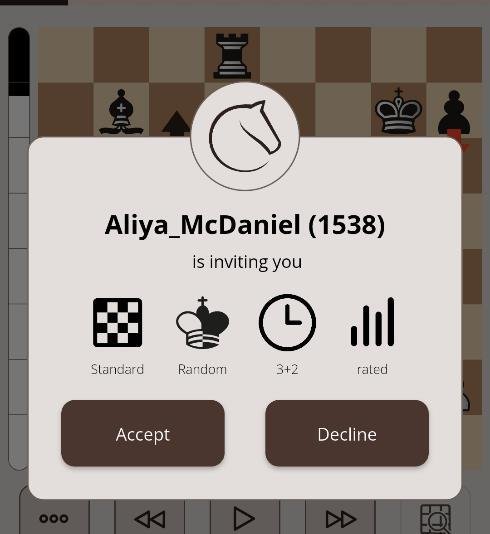
Challenges appear only while you are not playing a game. During an active game they are hidden.
Accepting opens the game automatically. Connect the board in the Board section if necessary; you can still follow the game in the app.


