![[board:marked][pieces:classic-ebonized][priority:1] Marked iChessOne board with classic ebonized pieces](http://www.ichess.one/cdn/shop/files/ichessone-smart-chessboard-3834565.jpg?v=1779804811&width=1500)

6.4.1 Lichess integration#
Recommended: authorize your account
- Open Settings → Integration → Link to Lichess.org, or Start → Play online Lichess.org.
- Select Authenticate with Lichess.
- Review and approve the permissions on Lichess.
- Return to iChessOne. Your connected username appears in Integration.
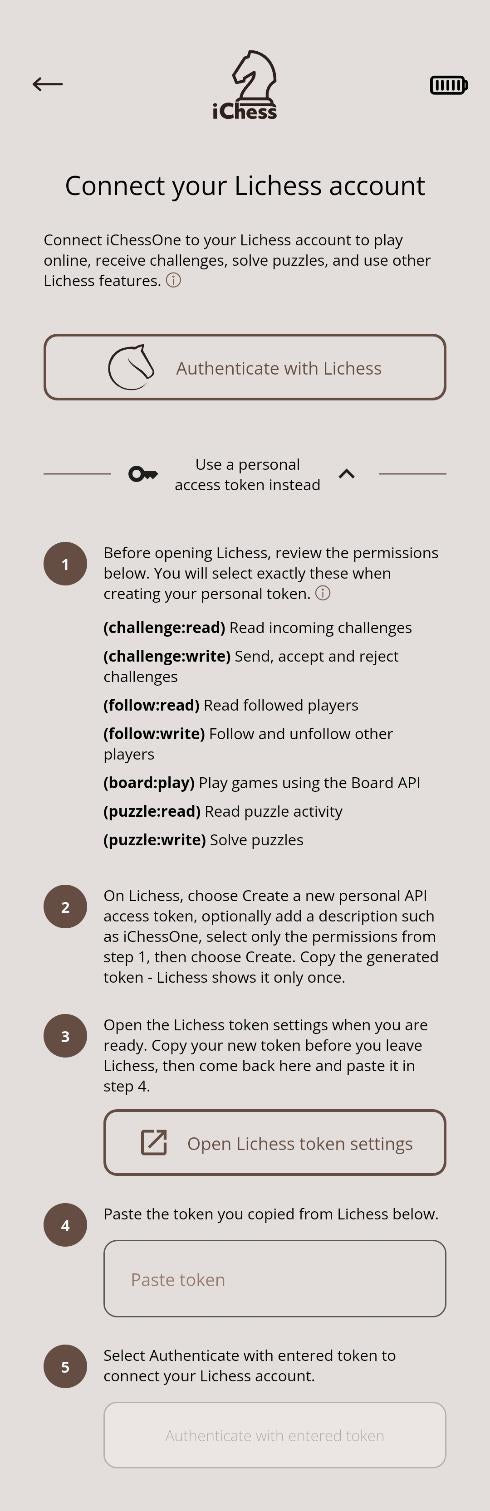
Alternative: personal access token
Expand Use a personal access token instead. Follow the in-app instructions to create a Lichess token with the required permissions, paste it into iChessOne and authenticate. Use this method if direct authorization is unavailable or you prefer to manage the token manually.
6.4.2 Starting a Lichess game#
- Select Play online Lichess.org from Start.
- If you have active games, open one from Active games, or preview its position.
- Otherwise, select a Favourite preset or tap New game.
- Review the game settings.
- Start matchmaking or create the selected game.

Opening an active game synchronizes the board with its position. The status bar indicates your assigned color in green.
Finding an opponent
Random color and a wider opponent rating range generally make it easier to find a match. Restrictive combinations can reduce the number of available opponents.
Time controls
- Standard real-time matchmaking through the Lichess API supports rapid and classical games.
- Blitz is available for direct challenges and games against Stockfish.
- Create direct challenges from the app’s Friends section.


