![[board:marked][pieces:classic-ebonized][priority:1] Marked iChessOne board with classic ebonized pieces](http://www.ichess.one/cdn/shop/files/ichessone-smart-chessboard-3834565.jpg?v=1779804811&width=1500)

6.5 Chess.com#
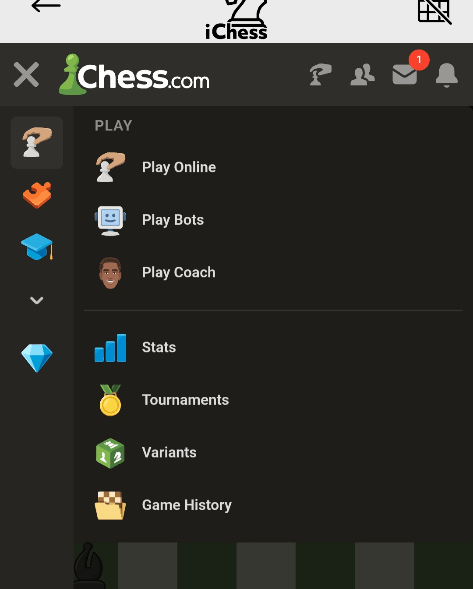
Chess.com play runs inside the Chess.com section of the iChessOne app. Sign in there and use the Chess.com features available to your account, including supported online games, Play Bots and Play Coach.
The interface and options are controlled by Chess.com, so they can differ from Lichess and change with platform updates.
6.5.1 Chess.com integration#
- Open Start → Play online Chess.com.
- Sign in using an available Chess.com login method.
- On the authorization screen, allow the iChessOne integration.
- Return to the Chess.com play screen in the app.


Initial authorization is completed inside the Chess.com section, not in Settings → Integration. Chess.com supplies a token for supported data exchange; iChessOne does not store your Chess.com password. Games remain associated with your connected Chess.com account.
6.5.2 Starting a Chess.com game#
- Open Start → Play online Chess.com.
- Complete login and authorization if prompted.
- Check that the board is connected and pieces are ready.
- Choose the game mode and time control.
- Tap Start Game, create a challenge, open an available game or choose another supported play mode.

The screen can include New Game, Games and Players. Available actions include playing a friend, accepting challenges, joining tournaments and creating custom challenges.
6.5.3 Preparing the board before Chess.com matchmaking#
- Connect the board.
- Arrange the pieces correctly before starting matchmaking.
- When the game opens, compare the physical board with the app and correct any highlighted squares.
6.5.4 Chess.com game options#
Select game options directly in the Chess.com interface inside the app. Available modes depend on your account, the selected game and the current Chess.com interface.
Play Bots and Play Coach
- Open the Chess.com menu within the Chess.com section.
- Select Play Bots or Play Coach.
- Follow the instructions in the Chess.com interface to use the physical board for training.