![[board:marked][pieces:classic-ebonized][priority:1] Marked iChessOne board with classic ebonized pieces](http://www.ichess.one/cdn/shop/files/ichessone-smart-chessboard-3834565.jpg?v=1779804811&width=1500)

5.3 Game settings#
Open Settings → Game settings to adjust the board’s LEDs, sounds and move handling. These settings apply to online, offline and AI games.
Lighting changes produce a live preview on the board for about five seconds.
5.3.1 LED brightness settings#
Each brightness slider offers four levels: Dim, Moderate, Bright and Full.
| Control | What it adjusts |
|---|---|
| Overall board brightness | The basic light output of the entire board; other lighting effects scale with it. |
| Highlighting key events | Game start/end, incorrect placement warnings and power-on/off feedback. |
| Game action highlighting | Opponent moves, illegal moves, available moves, AI hints, premoves and pick-up/place feedback. |

When you change a slider, the relevant lighting events preview at the selected level for approximately five seconds.
5.3.2 Single square indication#
- Enabled (default): two LEDs at the edges of the square identify the exact square.
- Disabled: edge LEDs identify the file and rank; locate the square at their intersection.

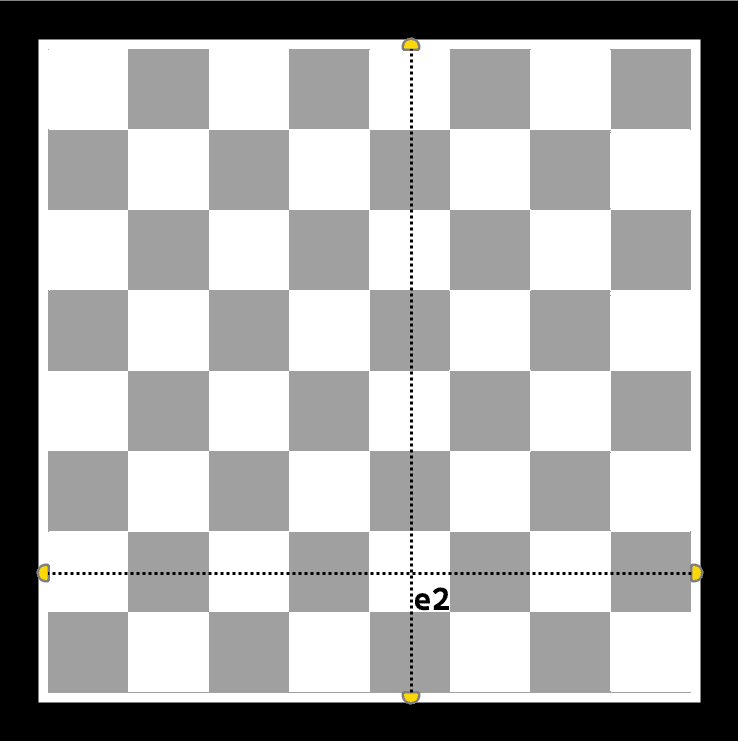
Coordinate-based indication can reduce visual activity or help you practice reading files and ranks.
5.3.3 Highlight square action#
Enable this option for a brief light whenever you lift or place a piece. It confirms that the board detected the interaction.
Choose pink, blue, cyan, green, red, yellow (default) or white. Turn the feature off if you prefer less visual feedback.
5.3.4 Highlight king under attack#
Enable this setting to highlight your king’s square when it is under attack. The highlight clears when the king is no longer in danger.
- Choose red or another color from the standard palette.
- The setting works in offline, online and AI games.
- Changing it previews the king squares e1 and e8.
- Turn it off in Game Settings if you prefer a cleaner board.
5.3.5 Highlight origin square#
Keep the square a piece moved from highlighted as a reference to the last action.
- Changing the setting previews square c7.
- The origin highlight remains visible alongside other indicators.
- Choose pink, blue, cyan, green, red, yellow or white, or disable the feature.
5.3.6 Highlight available moves#
When you lift a piece, this option highlights its legal destinations. For example, lifting the pawn on e2 in the starting position highlights e3 and e4.
- Choose green, blue or red.
- Changing the option previews destinations c6 and c5, with c7 as the origin.
- If Highlight Origin Square is enabled, c7 uses its own assigned color; otherwise it uses the available-moves color.
- Disable the setting for a more traditional board experience.


